Leads Scraper: free Google Maps lead extractor for Chrome
Find local businesses on Google Maps and 11 other directories, collect their phone numbers, websites, emails and social profiles, score them as prospects, and export everything to CSV or Excel. Everything runs inside your browser. No account and no monthly fee.
Everything you need to build a local lead list
12 lead sources
Google Maps, OpenStreetMap, JustDial, IndiaMART, Sulekha, Practo, Bing Maps, Yellow Pages, Yelp, Foursquare, OpenCorporates and Companies House.
Auto extract
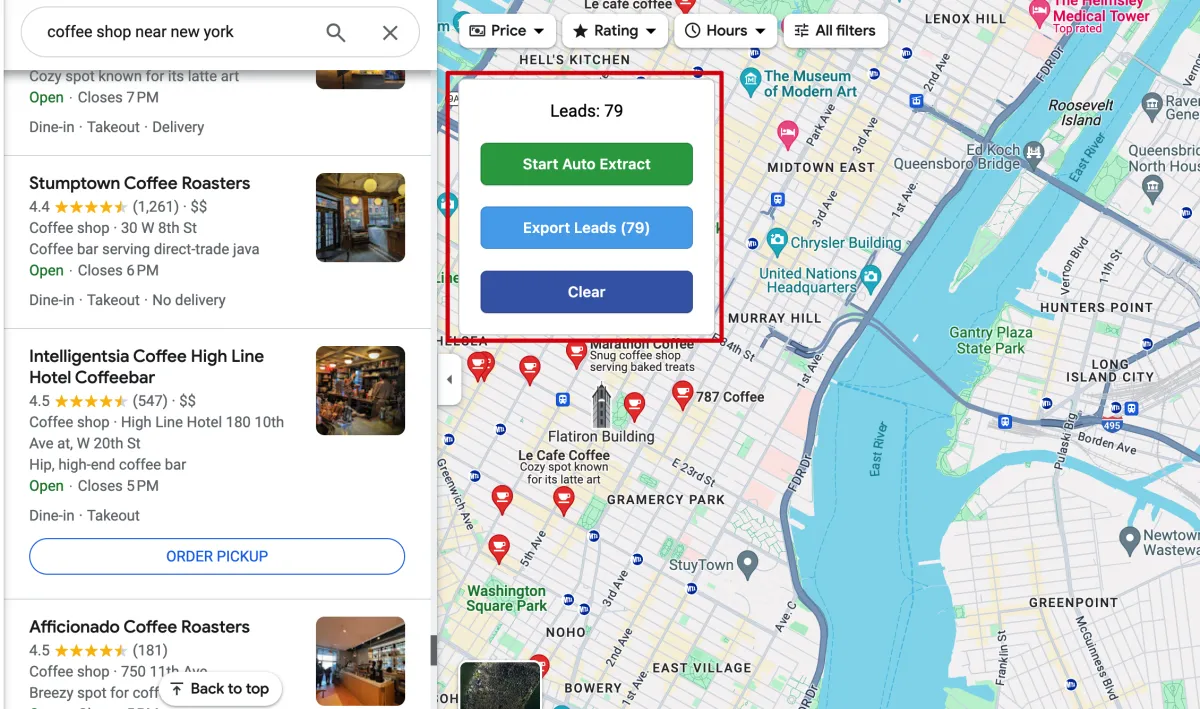
Start Auto Extract scrolls the results for you and keeps counting leads, even if you switch tabs. Stop whenever you have enough.
Emails & social profiles
Visits each business website and its contact page to find email addresses and Facebook, Instagram, LinkedIn, X and YouTube profiles.
Lead scoring & filters
Every lead gets a 0–100 score. Filter by no website, weak website, has phone, not contacted, rating and review count.
Duplicate merging
The same business found twice (from two searches or two sources) merges into one lead, filling gaps without overwriting what you have.
Export anywhere
Download CSV or Excel (XLSX), copy straight into Google Sheets, or push to Zapier, Make or your own webhook.
WhatsApp & email outreach
Pick a template and the extension opens WhatsApp or your email app with the message ready, and records who you contacted.
Private by design
Leads, notes and settings stay in your own browser. No account, no tracking, nothing uploaded to a server.
See it in action
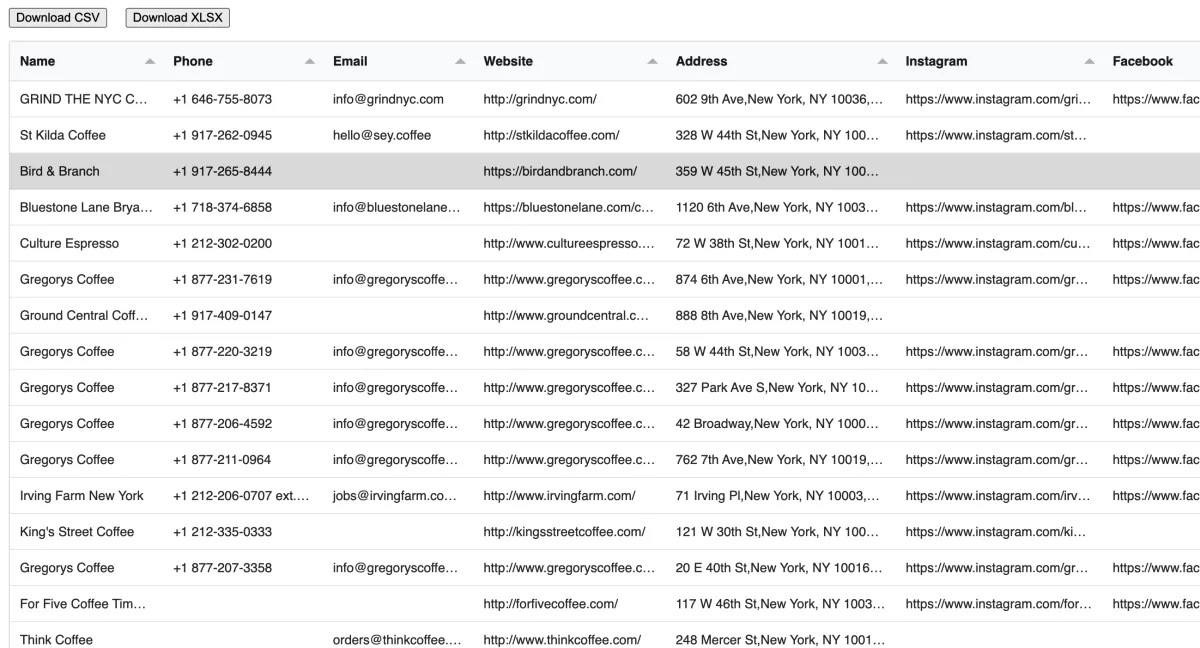
Data collected for each business
- Business name
- Phone number
- Website
- Email address
- X (Twitter)
- YouTube
- Full address
- Rating
- Review count
- Opening hours
- Category
- Latitude & longitude
- Google Place ID
- Google CID
How to add Leads Scraper to Chrome
It installs in about two minutes. Because it is distributed from this site rather than the Chrome Web Store, you add it with Chrome's Load unpacked option:
Download the extension
Unzip it
Right-click the downloaded
leads-scraper-v3.5.0.zipand choose Extract All (Windows) or double-click it (Mac). You get a folder calledgoogle-map-leads-scrapper. Keep this folder somewhere permanent, such as Documents, because Chrome loads the extension from it.Open the extensions page
In Chrome's address bar, type
chrome://extensionsand press Enter. (Edge:edge://extensions, Brave:brave://extensions.)Turn on Developer mode
Switch on the Developer mode toggle in the top-right corner of the extensions page.
Click "Load unpacked"
Click Load unpacked (top-left) and select the
google-map-leads-scrapperfolder, the one that containsmanifest.json. Leads Scraper now appears in your list of extensions.Pin it to your toolbar
Click the puzzle-piece icon next to the address bar, then the pin next to Leads Scraper. Click its icon any time to open the side panel.
chrome://extensions.How to use it
Open the side panel
Click the Leads Scraper icon in your toolbar. The control panel docks on the right of the browser.
Search
Type what you are looking for, such as architects in gwalior or dentists in dubai, and press Search Google Maps.
Extract
When the results load, press Start Auto Extract. It scrolls through the results and counts leads as it goes. Press Stop when you have enough.
Filter & export
Press Export to open the dashboard, filter (for example, businesses with no website), then download CSV or Excel, or send a WhatsApp or email message.
Where it finds leads
None of the sources needs an API key. Page sources extract from a results tab you open; OpenStreetMap and the optional-key sources fetch results directly, with no page to scroll.
| Source | Coverage | Notes |
|---|---|---|
| Google Maps | Global | Richest local data |
| OpenStreetMap | Global | Open data, no page to scroll |
| JustDial | India | Dense phone coverage for small businesses |
| IndiaMART | India | B2B suppliers, often with a named contact |
| Sulekha | India | Local services and trades |
| Practo | India | Clinics and practitioners |
| Bing Maps | Global | Lighter anti-automation than Google |
| Yellow Pages | US | Clean, structured listings |
| Yelp | US / EU | Optional API key |
| Foursquare | Global | Optional API key |
| OpenCorporates | Global | Company records (no phones) |
| Companies House | UK | Official UK company register |
Your data stays on your computer
Leads, notes, templates and settings are stored in your own browser's local storage. Nothing is uploaded and there is no tracking. The extension only makes requests needed for the work you ask it to do, such as loading a results page or visiting a business website to find its email address.
Permissions: storage (to save your leads), scripting (to read result pages), side panel (for the control panel) and access to websites (to visit business sites for emails and social profiles).
Use it responsibly. Scraping may conflict with the terms of service of the sites involved, and contacting businesses is regulated by laws such as GDPR in the EU and UK and CAN-SPAM in the US. Check the rules where you and your prospects are, keep volumes reasonable, honour opt-outs, and never contact anyone who has asked you not to. The extension spaces out its requests and does not try to bypass captchas or bot protection.
If something does not work
- "Load unpacked" is missing: turn on Developer mode first (top-right of the extensions page).
- "Manifest file is missing or unreadable": you selected the wrong folder. Choose the folder that directly contains
manifest.json, not the zip file or a parent folder. - Extraction finds nothing: make sure the results list is on screen. If Google shows a captcha or an "unusual traffic" page, wait a while and search more slowly.
- Buttons look out of date: click the reload icon on the extension's card in
chrome://extensions, then reopen the tab. - WhatsApp opens the wrong number: set your default country code in the side panel. Numbers that already start with + are never changed.
Leads Scraper FAQ
Is Leads Scraper really free?
Yes. It is free to download and use, released under the Apache-2.0 licence. There is no account, subscription or usage limit.
Do I need an API key or a login?
No. Every source works without a key or login. Some sources (Yelp, Foursquare, Companies House) can optionally use your own API key for faster official results.
Why is it not on the Chrome Web Store?
It is distributed directly from this site, so you install it with Chrome's "Load unpacked" option. It takes about two minutes using the steps on this page.
Why does Chrome say it can "read and change all your data on all websites"?
To find email addresses and social profiles, the extension visits the websites of the businesses you extract. That requires permission to load any website. Your leads are stored only in your own browser and are never uploaded.
Does it send WhatsApp messages or emails automatically?
No. It prepares the message and opens WhatsApp or your email app; you press send yourself. Automated bulk sending breaks WhatsApp's terms and puts your number at risk.
Does it work in Edge or Brave?
Yes. It works in Google Chrome, Microsoft Edge, Brave and other Chromium-based browsers. Use edge://extensions or brave://extensions instead of chrome://extensions.
Is it affiliated with Google?
No. Google Maps is a trademark of Google LLC. This extension is not affiliated with, endorsed by, or sponsored by Google.
Need a custom scraper, extension or lead pipeline?
I build Chrome extensions, data pipelines and integrations for businesses. Tell me what you need.